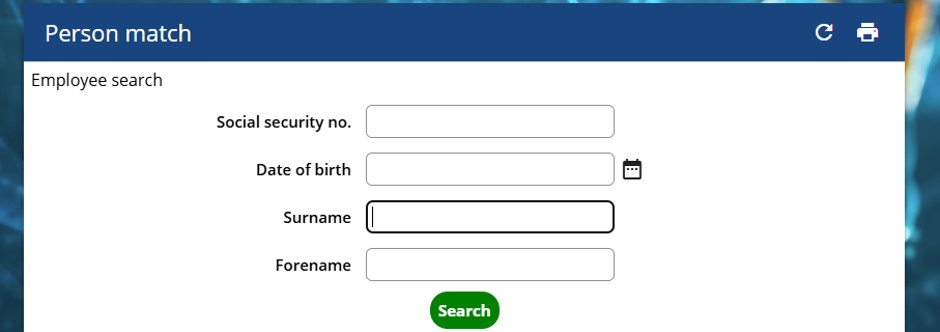
Once these details have been entered, select Search.
View all Close all
Once you select Search, check whether there is an existing person match.
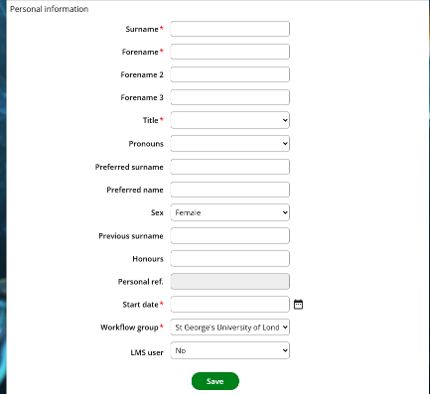
If there is no existing person match, the details will automatically populate in the section below.
You will still need to enter:
- Title
- Start Date – this should be the start date stated on the Honorary Application Form.
Once all the required information has been entered, select Save and proceed to the next step.
Once you have moved to the next step, copy the individual's Personal Reference Number.
Enter this number into the Agresso Number field.
Select Save and then proceed to the next step.
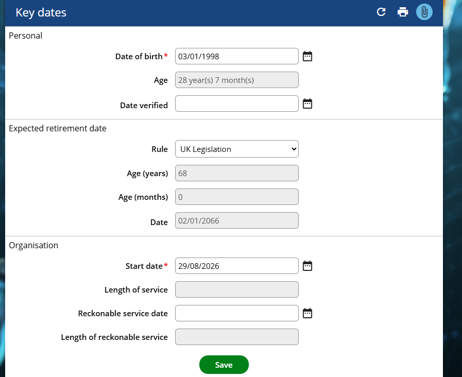
Input the individual's Date of Birth.
In the ‘Rule’ section, select UK Legislation.
Ensure that the Start Date is the date stated on the Honorary Application Form. Select Save and proceed to the next chain.
Picture reference:
Input the individual's National Insurance Number.
Select Save and proceed to the next chain.
Using the DEI Form completed by the applicant, populate the relevant information on this page.
Once all the information has been entered, select Save and proceed to the next page.
Enter the individual's Mobile Telephone Number and select Save.
Click New, then enter their Home Email Address if they have provided a personal email address.
Select Save and proceed to the next step.
The Effective Date will appear first. Ensure that this date matches the date stated on the Honorary Application Form.
Once the correct date has been entered, select OK.
Next, input the individual's address details and select Save.
Using the Personal Details Form completed by the applicant, input their Next of Kin details.
Select Save and proceed to the next page.
On the next page, enter the Next of Kin details again where required.
Input the individual's passport details using the information provided by the applicant.
If the individual does not have a visa, skip this step.
If the individual does have a visa, input the Visa Expiry Date and select Save.
Enter the date that the individual's employment will start in the Effective Date field and select OK.
Next, open another iTrent tab by selecting the iTrent icon at the top of the screen.

Go to Home and select Organisation Structure, then select Org Explorer.
Set the Effective Date to today's date.
Select the + next to St George's University of London, then go down to Unpaid Staff and select the + next to it.
Most Honorary positions can be found under the Academic Institutes tab. Select the + next to Academic Institutes to view the available Institutes.
Picture reference:

Check the Honorary Application Form to identify which Institute the individual should be assigned to.
Once you have located the correct Institute, select the + to view the available roles, for example:
- Honorary Research Fellow
- Honorary Lecturer.
Once you have located the appropriate role, select the + again to view the available positions.
Checking for a Vacant Position
Look for a vacant chair/position to assign the individual to.
Green chairs indicate that the position is vacant.
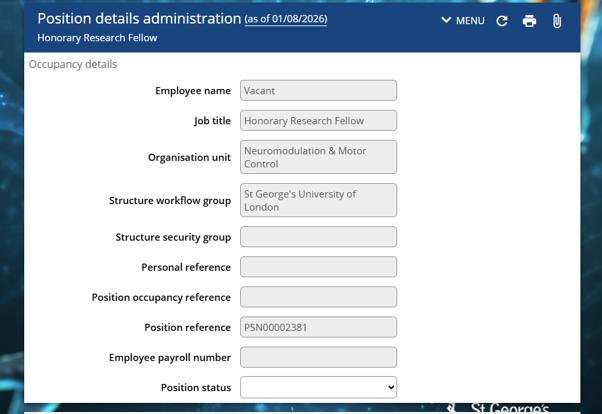
Select a vacant chair, which will take you to the position details administration page.
Select Menu, then Position Occupancy History.
Select Set Search Criteria and change the Occupancy End Date to 2029.
Select Search.
If the position still shows as Vacant in the drop-down, the position can be used.
Copy the Position Reference Number.
Assigning the Position to the Individual
Return to the Unpaid New Starter Process Chain that you were completing for the individual.
Select the magnifying glass next to the Job Title.
Select Position Ref No. and paste the Position Reference Number that you copied earlier.
Select Search, then select the relevant position.
Change the Contract Name to the individual's full name and select Save.
Picture reference:

Select the magnifying glass next to Reports To.
Select Surname and enter the surname of the individual stated on the Honorary Application Form as the person proposing the Honorary.
If this section has not been completed on the application form, assign the individual to the person who emailed requesting the Honorary.
Change the following fields to:
- Category: Honorary Unpaid
- Basis: Unpaid
- Type: Not Applicable.
Once the details have been entered, proceed to the next step.
Skip Steps 18, 19 and 20.
This is the final step of the process.
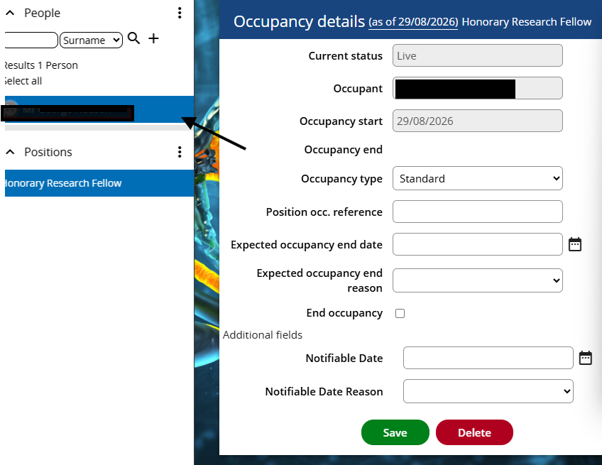
Ensure that the Effective Date is the date that the individual's employment will start.
Next, complete the Position Occ. Reference field. This can be found on the side tab. Hover your mouse over the relevant position to reveal the reference number.
At the end of the reference number, add the letter A or B, depending on whether this is the individual's first position.
Input the Expected End Date of Occupancy. This should be based on the end date stated on the Honorary Application Form.
Once all the information has been entered, select Save and then Complete the Chain.
Picture reference:
Once the iTrent process has been completed, the next part of the onboarding process is to send the individual their Honorary Appointment Letter along with the ID Application Card.
The relevant templates can be found in the Templates section of the P: Drive.
Important: There is a different Honorary Appointment Letter for IMBAE Honoraries. Ensure that the correct letter is used depending on the type of Honorary being processed.
Once the letter and ID Application Card have been sent to the individual, the Honorary onboarding process is complete.